Adopting CodeBot Safely
Some developers are immediately comfortable with coding agents. Others want to see exactly what the AI can touch, and what it is doing or changing.
This page takes you through understanding file system and computer access, then testing and watching read-only work, then trying small edits.
Understand and Test Out CodeBot
1. Check What CodeBot Can Access
Start by looking at the workspace printed at the top of the session. (With a project open, scroll up to the top of the chat.)
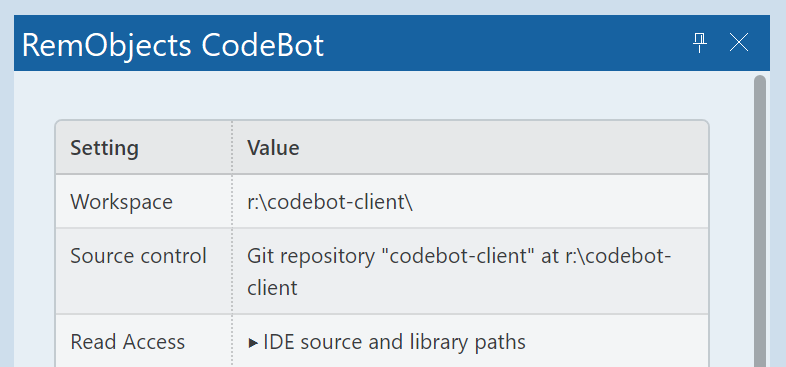
At the start of a session, CodeBot shows the folders it can access. It can read and write inside the workspace -- the base or root folder of your project -- and any additional folders you have explicitly manually allowed (ie, zero others if you have not set any up.)
It cannot read or write arbitrary folders on your machine.
Installed libraries and components are read-only: CodeBot can read the IDE's configured library and source paths. It cannot write.
In other words:
-
Your project: read and write. It needs this to do its job.
-
Your components and libraries: read-only.
-
Anything else: not allowed.
Use source control or keep a backup copy of your code, just as you would for your own editing. If you're worried, make sure you have a backup now before continuing this page.
See Permissions and Security for full details.
2. Watch What CodeBot Is Doing
CodeBot shows its work in the chat:
-
When performing an action, such as reading a file or searching, it shows what it is doing and why.
-
File edits are shown as diffs
-
Visible form changes are shown as 'visual diffs'. All form changes are shown as diffs against the .dfm/.fmx file as well.
-
At the end of the work, Recaps summarise what happened.
See Tracking What CodeBot Does.
3. First: Ask Questions
Now you know both what CodeBot can (and can not!) access, and how to see what it's doing, let's try some read-only work:
Write to it:
What does this project do?
Trace the code path from this event handler to the database write.
This lets you see how CodeBot researches the project -- how it 'thinks', how it works -- before asking it to edit anything.
4. Make Small Edits
Now, make some changes that are easy to inspect:
Rename the caption to Refresh, only.
Add a comment explaining the workaround in DoSomething. Do not change the logic.
Fix any compiler errors.
After CodeBot edits files, read the diffs shown in the chat and the Recap that is printed at the end.
5. Review What Happened
The chat contains a history of what happened. You can read all of this, including diffs, or you can read only the Recap at the end.
Read more: Tracking What CodeBot Does.
For code changes, source control remains the best safety net. Review the diff, and keep or revert changes as appropriate.
This is a good habit even when you trust CodeBot. Treat its work like work from another developer: useful, often very good, but still something that should go through the same standards and processes you normally use. You may choose to relax these after using CodeBot for some time.
Next steps
Congratulations! You have now gone through a full CodeBot workflow: understood how it works, got it to research something for you, and got it to make a change plus reviewed that change.
6. Later: Ask for Plans
Before a larger change, ask for a plan:
I need to add support for this option. Make a plan first; do not edit files yet.
You can also use the /plan slash command. Planning is useful when the work has several steps, or when you want to discuss the approach before implementation. Plans mean you know what CodeBot will do before it does it. When using /plan, CodeBot will explicitly ask for your permission before work: it needs you to approve before it executes the plan.
7. Later: Use Autopilot
Autopilot is for longer-running work where CodeBot first plans the work and gets your confirmation. Autopilot with Code Review adds extra review agents after each coding segment.
Autopilot uses plans too: you know ahead of time what CodeBot will do.
It's useful once you're comfortable with CodeBot's normal workflow, and is a way to have CodeBot work for longer without you having to watch it, while feeling assured it's kept on track and writing good code.