Settings Reference
To access CodeBot's settings, click the CodeBot button in the chat, and select Settings; or go to the IDE's View menu > RemObjects CodeBot > Settings.
Settings allow you to:
- Configure chat behaviour
- Set up MCP servers, Skills, and Custom Agents
- Change network settings
- Change local session and log data storage
- Choose how CodeBot updates itself
You can also check your RemObjects account login.
General - Chat Behaviour
Chat
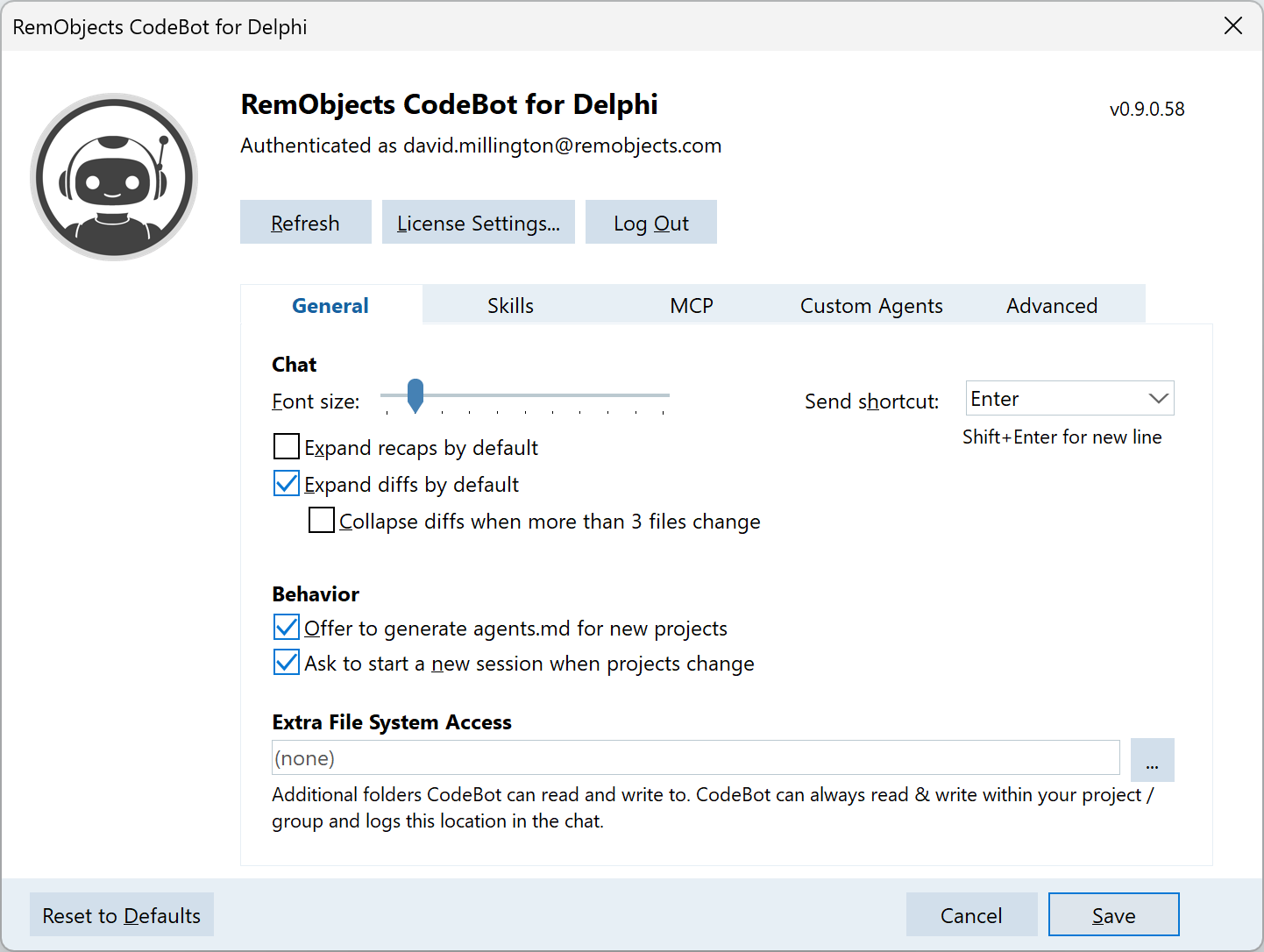
-
Font size slider: CodeBot uses the IDE's font settings, but in a text-heavy UI like CodeBot, we use a larger font size in the chat, in order to be easier to read. This setting controls how much larger than the IDE's default UI font size the chat text is. Move it fully left to match the IDE's default UI font; our default is 1 point larger.
-
Send shortcut: By default, pressing Enter in the chat sends the message. Often you may want to write longer messages and insert newlines, and you can do so by pressing Shift-Enter. This setting swaps those two keys, so Enter inserts newlines, and Shift-Enter sends -- the preference for which key is used to insert a newline is about 50/50, yet is muscle memory for many people, so this setting should allow you to use Send vs newlines as you wish.
Tip: If you write longer messages, you can expand the size of the chat field: the top can be dragged to expand.
The remainder of the Chat settings change what is displayed by default:
-
Expand recaps by default: Recaps are a summary of what CodeBot just did; you can click them to expand or collapse. If you want to always see them, check this to make sure they are expanded by default.
-
Expand diffs by default: Code diffs display what CodeBot is writing or editing in traditional diff format (removed and added/changed lines.) Like recaps, they can be clicked to expand/collapse (click the header at the top of the diff.) Diffs can be sizeable when a lot of code is changed, and so use a lot of space in the chat. Depending on your level of trust for AI you may not always want these to be expanded; you can uncheck this so the diffs are collapsed by default.
-
Collapse diffs when more than 3 files change: is a middle ground to resolving space taken by diffs. You can display diffs expanded by default, but have them display collapsed by default when multiple files change at once.
Behaviour
These settings affect what CodeBot offers or displays. We recommend leaving them checked.
-
Offer to generate agents.md for new projects: it is often useful to 'initialise' an agents.md knowledgebase; see Learning Your Codebase for more info. When checked (the default) CodeBot will suggest to do this when no agents.md file is found.
-
Ask to start a new session when projects change: It is best practice to keep a chat session focused on one task, and start a new session for a new item of work, even within the same project. This is even more so when you change projects, because old context that simply no longer applies may become stale and confusing for CodeBot. Therefore, with this setting checked (the default), CodeBot suggests creating a new session when you open a different project or project group. Projects within the same project group are one continuous workspace: activating, adding, or removing a project in that group does not prompt.
-
Show CodeBot avatar: The avatar is a small onscreen animated representation of CodeBot that stays on top and shows important activity, progress, questions, and work recaps in a message bubble. This is useful when the chat or Delphi is in the background. It follows the top-level CodeBot agent rather than showing every subagent action. Turning it off does not disable CodeBot or affect the chat. See CodeBot Avatar.
Skills & agents.md, MCP Servers, and Custom Agents
These tabs let you configure various ways to expand CodeBot's capabilities. All of them share a common UI (list of the item, such as list of the skills), and all share a common paradigm in that you can set them up for your project (ie, for your team when you check it in to source control) and also set others up for yourself personally (local config, never seen by your team) at the same time. This is a powerful mix for both team practices and capabilities, but also personalising CodeBot for yourself.
Security warning: For all of these (skills, agents.md files, MCP, and custom agents) be aware of security. These instruct the AI, often with very high priority in how the AI treats the instructions. And in the case of MCP servers, they also give the AI new tools and capabilities, which, as third party external tools, are not run through CodeBot's own sandboxing for file and system access.
Skills and agents.md files
This tab allows you to add and edit Skills and to edit your repository and personal agents.md files, which are a similar/related concept.
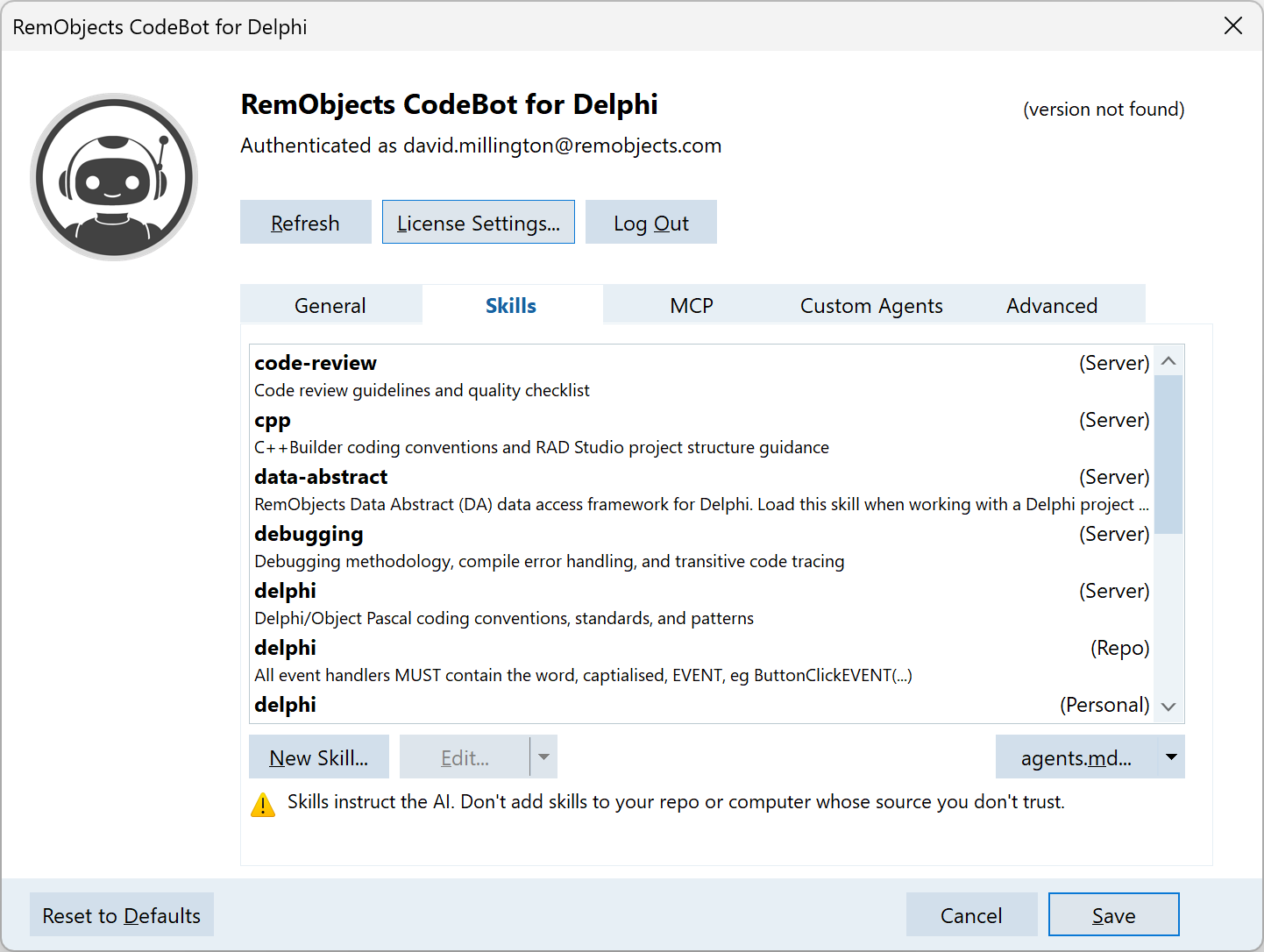
-
The listbox lists all skills available to CodeBot. Many of these are skills we define, and you will see '(Server)' in the top right. For your own skills, you will see '(Repo)' if in your current project, or '(Personal)' if this is one you've defined for yourself only. The list contains the skill name and description.
-
New Skill: click to create a new skill file. This dialog lets you choose if it is a project or personal skill, and edit the initial name, description, and automatic loading settings. Read more about skill loading.
-
When any skill is located locally (project repo or your own personal skill) when selected you can click Edit. This opens the same name/description dialog as New Skill, ie edits metadata not the skill text. To edit the text, click the dropdown to show a menu and select 'Open in IDE'. You can also show it in Explorer.
-
When the skill is defined by us, ie lives on the CodeBot server, you can still modify it by appending content: the two skills are merged and loaded as one. This allows you to customise our skills. When a '(Server)' skill is selected the Edit button is replaced by 'Append'; click it to create a new skill of the same name. Thereafter, you will see the server skill and your skill listed.
Agents.md
Agents files are a knowledgebase, and so are conceptually similar to skills: skills are for a task or specialised area; agents files are for your project or personal workflows. You can create agents files via the /init command but you can always edit them manually.
The agents.md button opens the project agents file, but click the dropdown to edit this or your personal agents.md. Read more about them here.
MCP
MCP servers are external tools that connect over the MCP protocol and can provide a wide range of functionality. Be aware of security issues here and ensure you trust the MCP tools you add; CodeBot cannot guard file or system access.
-
New server: Adds a new MCP server, by default one configured in your project/repo, but click the dropdown to add one just for yourself.
-
Open MCP.json: MCP configuration is a JSON file; click this button to open and edit it in the IDE. By default this opens the project/repo MCP configuration but click the dropdown to edit any personal configuration too.
-
Restart Server: If a MCP server is malfunctioning, try restarting it. Servers are automatically restarted when you create a new session.
Custom Agents
Custom agents allow you to create agents for your own tasks and invoke them via slash-commands.
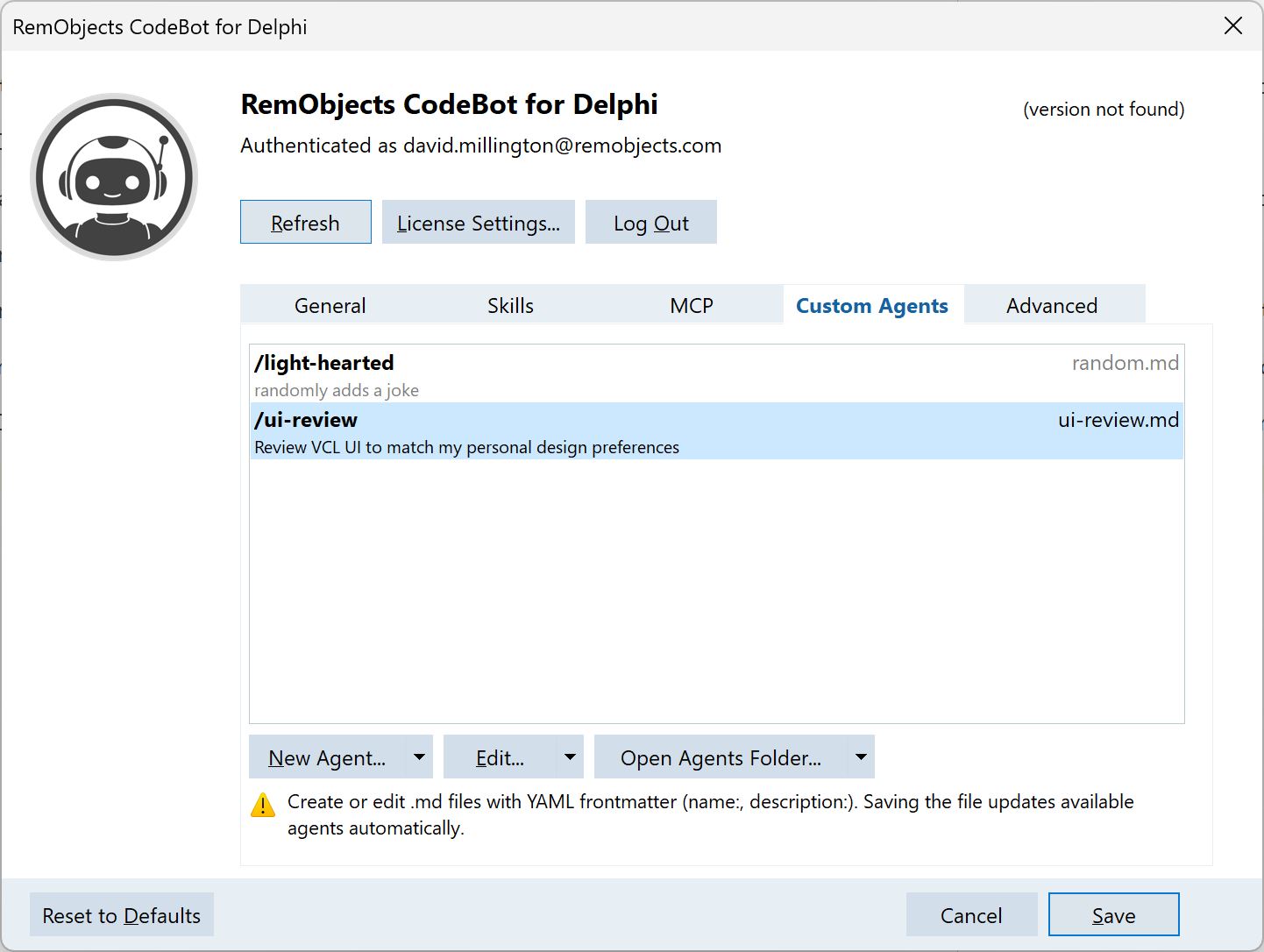
Like Skills and MCP, there is a list of all custom agents. Again like Skills and MCP, you can define these for your project (when checked in, shared with your team) or for yourself.
-
New Agent creates a new project/repo-wide agent; click the drop-down to create one that is personal (for you only). This will prompt you for a name and description.
-
Edit will open the custom agent as text in the IDE; click the dropdown to show the file in Explorer.
-
Open Agents Folder lets you find where custom agents are stored. The button opens the location for your project/repo; click the dropdown to open the location for your personal custom agents.
Read more about custom agents.
Advanced (network and data storage)
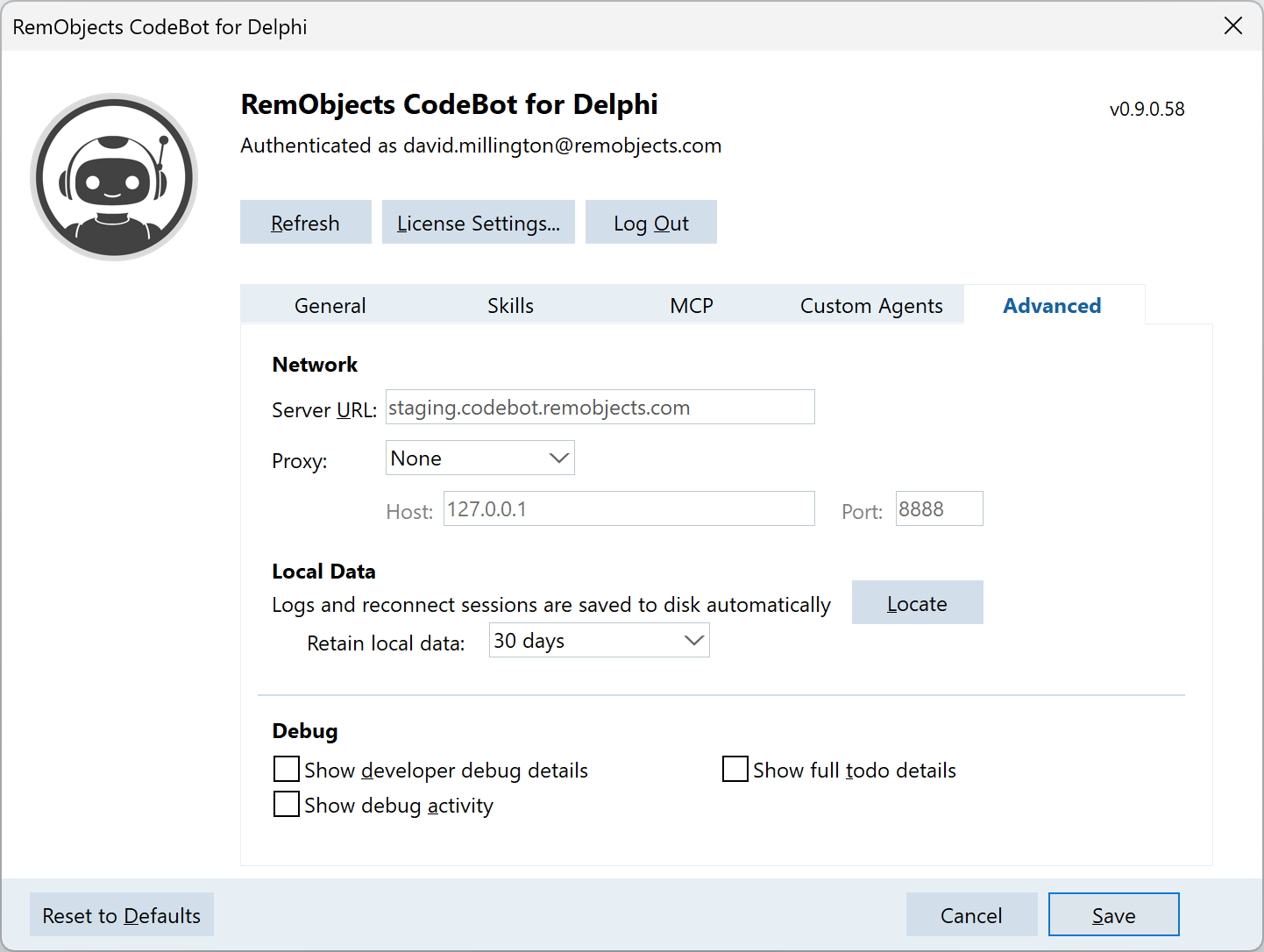
Network
The Server URL setting lets you point CodeBot at a different server. Only do this for official CodeBot servers provided by RemObjects. For example, we may make a preview or beta server available.
Any non-HTTPS URL will be rewritten as HTTPS. We do not recommend trying to use insecure traffic.
Network proxy
If your network requires proxy access, you can set that up here. By default CodeBot does not use a proxy. However, you can change the Proxy setting away from None, and choose;
-
System: the system-wide proxy settings, via automatic proxy discovery (WPAD)
-
Manual: enter a host and port for your proxy
Local Data
Logs, plus session data (to allow you to reconnect / continue a session), are stored locally on disk in:
-
%appdata%\RemObjects Software\CodeBot\Logs -
%appdata%\RemObjects Software\CodeBot\Sessions
They can take up a surprising amount of space and so are deleted when they reach thirty days old, by default. You can change the Retain local data setting to 30 days, 7 days, or to never delete.
However, if you really need to retain them, we recommend copying them to other storage. Logs and sessions can be cleared by anyone with access to your user account.
Logs
The log for each session is in folder named by the process ID and timestamp, for example 00001F90 - 2026-07-09 13.51.48. This folder name indicates that BDS.exe (the RAD Studio IDE) was process ID 0x0001F90 for this log, and CodeBot created the log a few minutes before 2PM on the 9th of July, 2026.
Logs are not intended for human analysis, but do allow tracking of every action CodeBot took plus every item of network traffic to and from the CodeBot server. Logs are not digitally signed and are not guaranteed to be an accurate record for audit purposes: they are primarily for debugging and are assumed true.
Sessions
Each session is stored on the CodeBot server while it is being used and for some time thereafter, but the long-term storage of a session is to your local machine only. This contains a folder named by your account ID and a unique hex string, such as myname_example_com-6edc67543e27. Inside this is a folder for each session, named by session GUID.
Session data is signed, primarily to ensure lack of tampering if they are sent back to the CodeBot server. They are not intended for audit use: they contain the current state of a session, and while that can include memory and history, this is not intended as auditable history storage.
Updates
CodeBot automatically checks for updates and notifies you of a new version when you start a chat. We strongly recommend updating in case using an old client causes problems.
The Channel setting lets you choose between Stable (the default), Preview, and Experimental channels for new versions of the CodeBot client.
Stay on Stable unless RemObjects has suggested another channel. (Note: not all changes will require it but we may also give you a non-production server URL to match a Preview or Experimental build.)
Automatically download updates is enabled by default. When an update is available, the chat shows its download progress. Once it is ready, click the install button; CodeBot asks for confirmation before launching the installer, which closes Delphi while updating. If a download fails, the same panel lets you retry or download it manually.
Login and Account
The top of the Settings dialog shows you:
-
Top right: the CodeBot client version
-
Your account name (usually an email address)
You can:
-
Log out - this then allows you to log in with a different account
-
Refresh your license: click this to do a quick check if you have any license issues
-
View full license settings: this opens a licensing dialog that lets you import a license file and other advanced RemObjects account actions.