Visual Form Design
Like all coding agents, CodeBot can edit your code, recompile your app, etc. If you want to see what changes it's making, you can see the diffs that it displays in the Chat view, which show added, deleted, and modified lines of code.
But what about something core to Delphi -- forms, and visually designing your UIs?
CodeBot has a feature that, at the time CodeBot was announced and still possibly today, was unique to coding AIs: it can also edit your forms, including frames and data modules, with visual changes displayed while the form designer is open.
That is:
-
With the form designer open, you will see changes appear live, as you do when code changes are made with the code editor open
-
In the chat view, where it displays textual diffs for code, CodeBot also displays a visual diff: the change to the UI in visual form.
This works for both VCL and FMX.
Editing in the Designer
CodeBot can make changes to your form, frame, or data module, including adding and removing controls, adding and removing non-visual components, setting properties, creating event handlers, and other changes you would normally expect.
Developers make these changes inside the form designer. If you have a form/frame/data module open and displayed in the form designer, such as if you have been making changes to it yourself, CodeBot's changes will also be present with the form designer remaining open.
Not only is this very Delphi-style at its core, but it allows collaborative work where working with CodeBot does not break your flow: you can see it work in the same way you work.
It is also about correctness. Delphi forms are not just source text; they are designer-managed objects, and some mistakes only show up when you run the app and use the form. CodeBot's form editing is designed around making valid designer changes, with the form designer open, and showing you the result visually as well as textually.
Creating Forms, Frames, and Data Modules
CodeBot can create new VCL and FMX forms, frames, and data modules, plus compatible templates from RAD Studio's Object Repository, including inherited forms as well as items provided by third-party components. (It can also create a variety of new projects.)
You can ask what is available, or simply describe the result you want:
Create a new VCL application with two forms. Make one look like a dialog.
or,
Create a new unit test project and add test for this class
See Creating Projects and Modules for more info.
Visual Diff
CodeBot shows what edits it is making, and this includes visual form design:
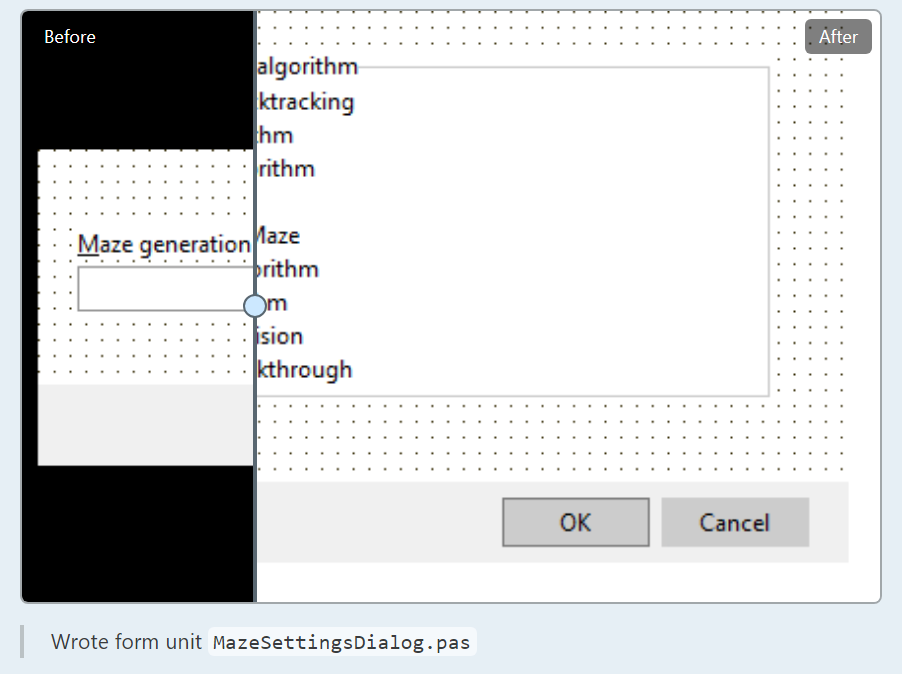
This animates old to new. You can click the 'Before' or 'After' text to play the diff again. You can also grab the drag handle and move it to compare the before and after.
The visual diff only appears when CodeBot makes an actually visible change to your UI. Many changes to components, whether properties or event handlers, do not make a visible change in the designer. In that situation, you can always see the change in the DFM or FMX which is diffed as text, the same way code is.
Both VCL and FireMonkey are shown with visual diffs.
Where a change is 'onscreen but not visible', such as having a tabbed page control but the visual changes are not on the frontmost visible tab, CodeBot should still render the change.
Currently, the diff is shown for the greatest scope, not each individual change. If CodeBot makes changes to multiple pages in a page control, it will render the page control itself, not the contents of both pages. Let us know if you'd like this in future.
High DPI
CodeBot designs all VCL forms at 100% scaling. This is the most correct and safe way to design a VCL form. (FMX can be designed at any scale and CodeBot works with FMX forms at any scale.) This is because, other than known values like Width, Top, etc, in a custom control any property can be DPI-dependent (let's say the margin between an icon and text.) The only way to safely set properties is to do them at the only canonical scale, 100%.
When working in the form designer, this means CodeBot will set the form designer to 100% scaling. But don't worry: once the work is complete, CodeBot will set it back.
This means while CodeBot is working in the designer you may see it render at 96DPI (ie, 100% scale, and this will looks smaller if your screen is higher scale) but once complete you will see your form / frame / data module as you prefer. Form designer views are closed and then reopened. CodeBot's chat includes a small notice when it changes it and when it changes it back.