Tracking What CodeBot Does
Developers who use AI have different levels to which they oversee an AI. Some don't look at the resulting code at all; some examine every change. Wherever you are on this spectrum it is important to be able to see what CodeBot is doing.
There are three primary ways to observe CodeBot's work plus actual changes to your code and files:
-
Tool call explanations
-
Diffs that show code / other file edits, including visual form changes
-
'Recaps' that periodically summarise the last set of work
CodeBot also keeps full logs.
Tool call explanations
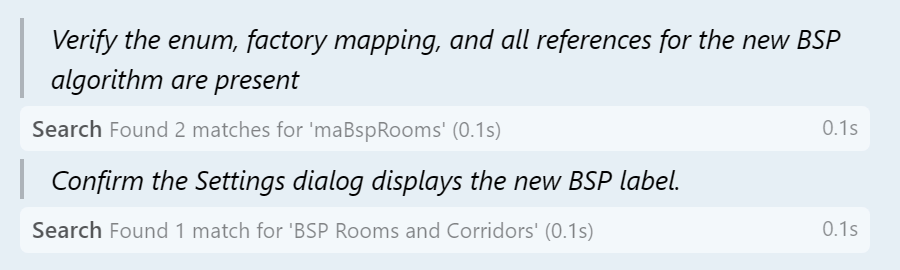
When CodeBot does something -- read or write a file, search, etc -- this action is displayed in the chat view. It also explains why.
Code Changes via Diffs
Whenever CodeBot edits a file, a diff is added to the chat. This shows added and removed lines of code, marked green and red (added and removed) and with plus and minus symbols.
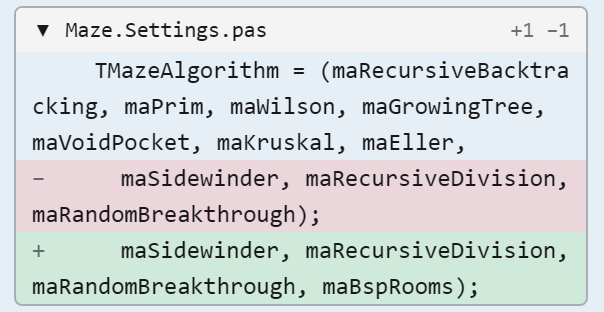
This includes code (.pas files) and form/frame/data modules (.dfm/.fmx files.)
Diffs are the classic way to track code changes, and reading these shows you exactly what CodeBot is doing.
If you don't want to see diffs, and just read CodeBot's own communications to you, you can choose to collapse diffs by default in  Settings. Diffs can be expanded and collapsed by clicking their header at any time.
Visual Diffs
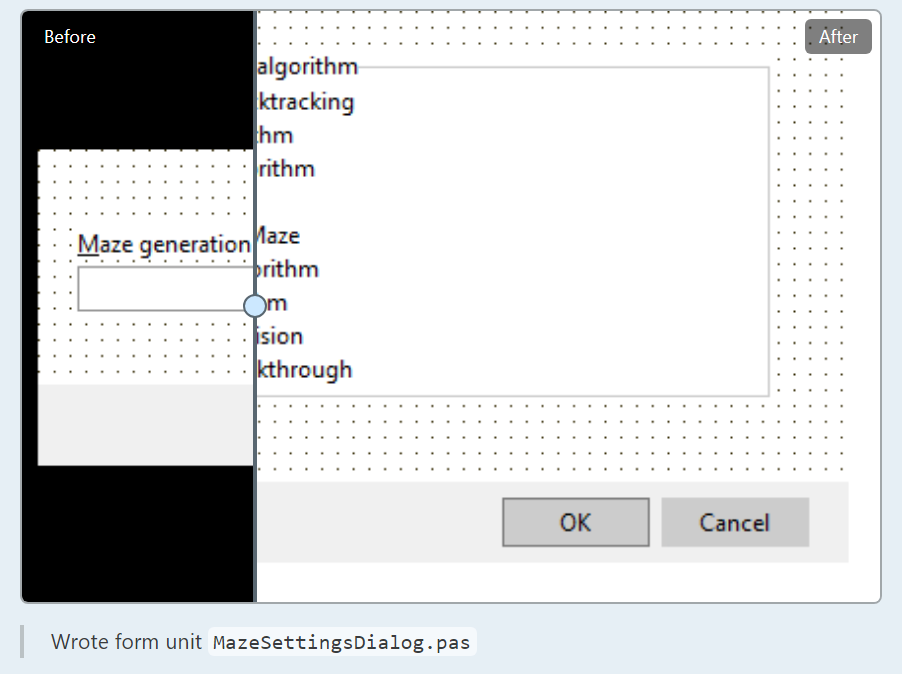
Changes to visual controls in the form designer are much easier to understand visually -- after all, visual form design is key to Delphi, and is a core location for many of us to work.
While the text changes to a form, frame, etc are displayed as a textual diff against the DFM or FMX file, CodeBot displays visible changes via a visual diff:
Recaps (Work Summaries)
Every time work is completed -- coding work is done, a question is answered, etc -- CodeBot will give a small summary of the work it did. This is rendered onscreen with the prefix 'Recap', and can be clicked to expand or collapse.
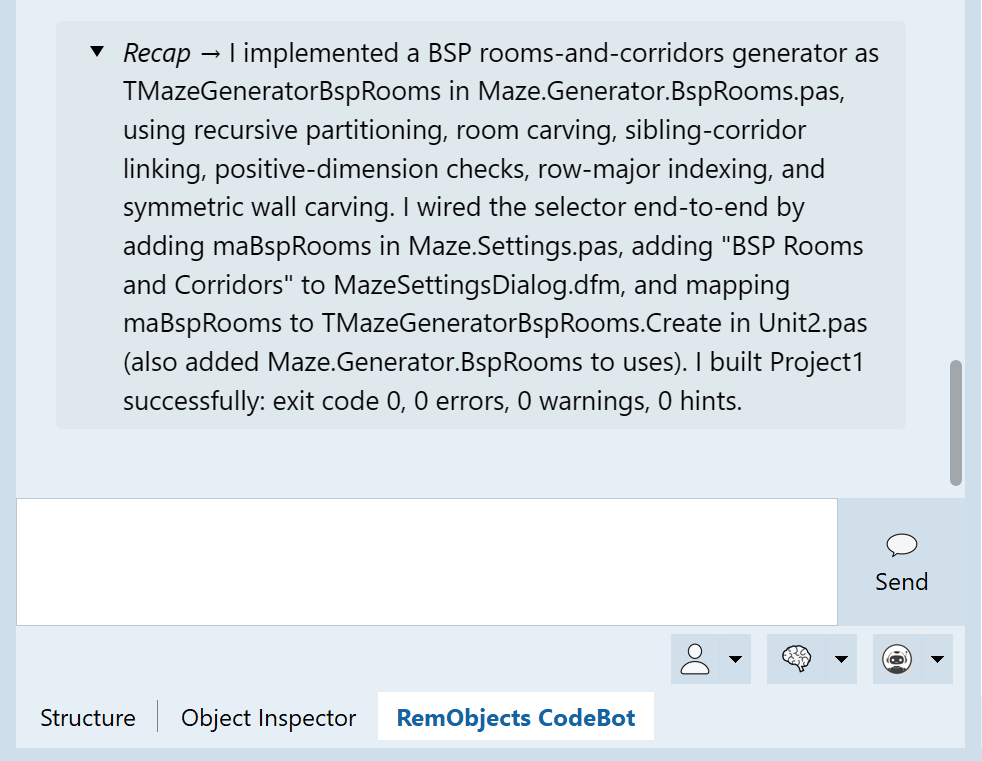
Recaps are a great way to get a quick summary of what was just done.

You can change if recaps are displayed in full expanded form, or collapsed form, in Settings.
CodeBot Avatar
The CodeBot avatar is a small onscreen animated representation of CodeBot. It stays on top and can show important progress, questions, and work recaps in a message bubble. It does not show all messages from the chat, only the more important ones. The avatar can be useful to keep an eye on CodeBot's progress when Delphi or the CodeBot chat is in the background.
The avatar is enabled by default. You can turn it off with Show CodeBot avatar in Settings.
See CodeBot Avatar for more.
Logs
CodeBot keeps full logs, plus session records.
See Settings for more information on where these are stored, for how long, and their use for tracking what CodeBot did.