Chat
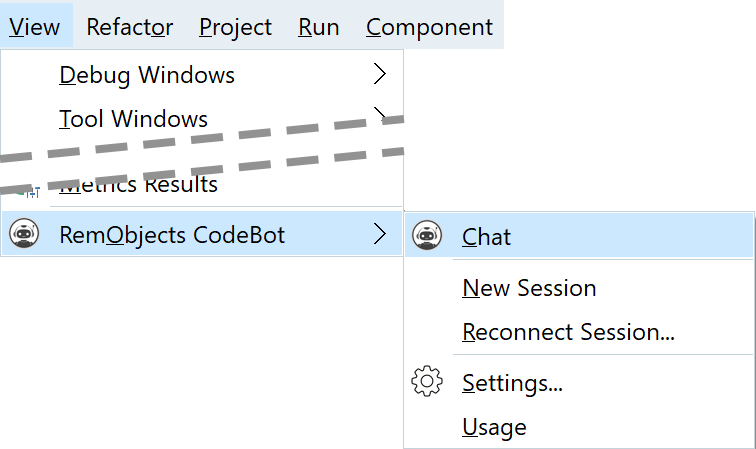
The primary interface for working with CodeBot is the chat window. Show this via the View menu > RemObjects CodeBot > Chat.
At the bottom is a text entry, with a Send button.
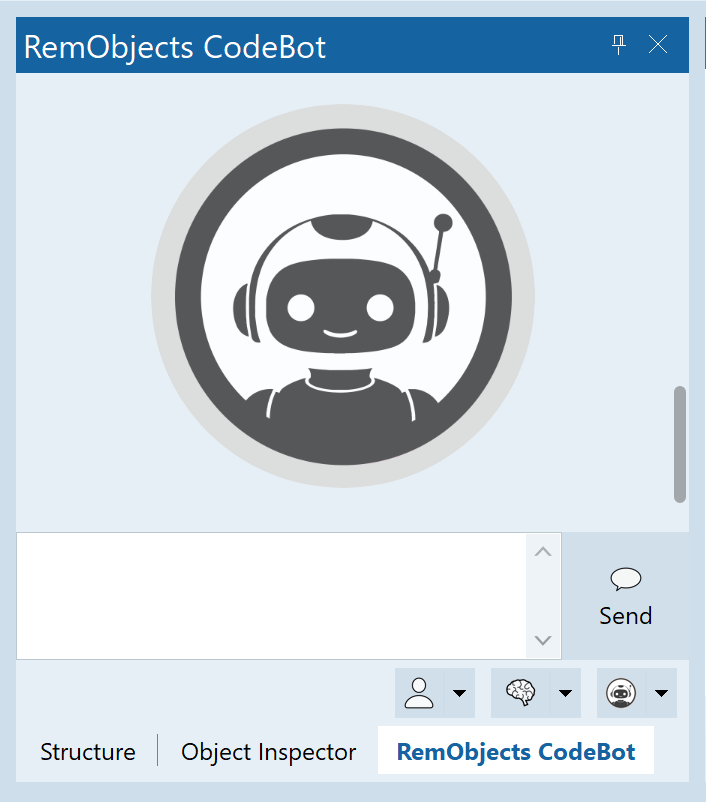
Type anything to CodeBot and press Enter.
Tip: You can control if pressing Enter sends the message, or adds a newline, in  Settings. Whichever you choose,
 Shift+Enter will perform the other function (send or newline.)
Tip: You can resize this chat entry text field to let you see more of the text you're writing at a time. The top edge can be dragged upwards.
Conversations
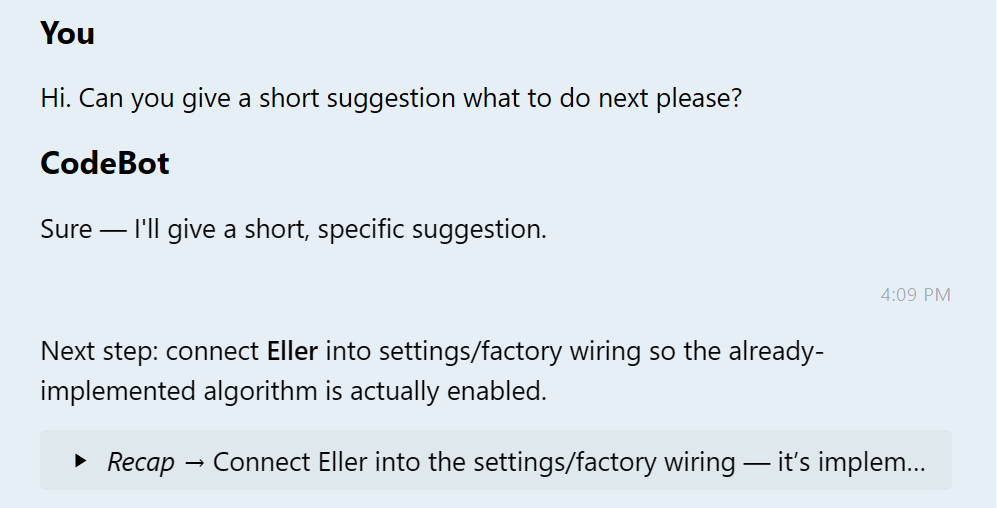
A chat sequence contains multiple elements. Consider this short example:
-
The identity of who wrote is always included in the Chat window: CodeBot or You.
-
When you send a message, CodeBot analyses its meaning and then acts on it. It gives a small acknowledgement of your message before beginning work. Here, that acknowledgement is the single line beginning 'Sure.'
-
There is a timestamp. This is granular to a minute. Anything arriving within the same minute will not have a new timestamp.
-
CodeBot answers ('Next step: connect...' which is in the context of work we've done).
-
There is a Recap. This is a summary or overview of what CodeBot just did. For a small conversation like this there's not much to say, but this is highly useful for large pieces of work, including changing code.
Tip: If CodeBot has done a lot of work and you have a lot to read through, consider just reading the Recap. Use it to decide if you want to look closer.
Tip: In Settings, there is an option to make sure recaps are always displayed in full (otherwise you need to click to expand.)
When you send a message, CodeBot knows the active project and unit. This means you can refer naturally to "this file" or "this form" and CodeBot will know you mean the one you see onscreen.
If you want to discuss a particular file or form, you can also just refer to it. You don't have to be precisely correct with the filename: saying 'the Foozle unit' is enough for CodeBot to identify MyApp.Backend.Foozle.pas.
Steering / Queued Messages
You can write to CodeBot while it is working. These messages will be read by CodeBot at the next opportunity, and until then show as 'Queued Messages'. (It usually takes a few seconds for CodeBot to reach a point it is able to process them.)
This allows a near-realtime interactive conversation. If you forget to tell CodeBot something, don't worry, and don't feel you need to stop its work and start again. Just write more to it. Or, if you see it thinking something, you can respond to that.
Here's an example:
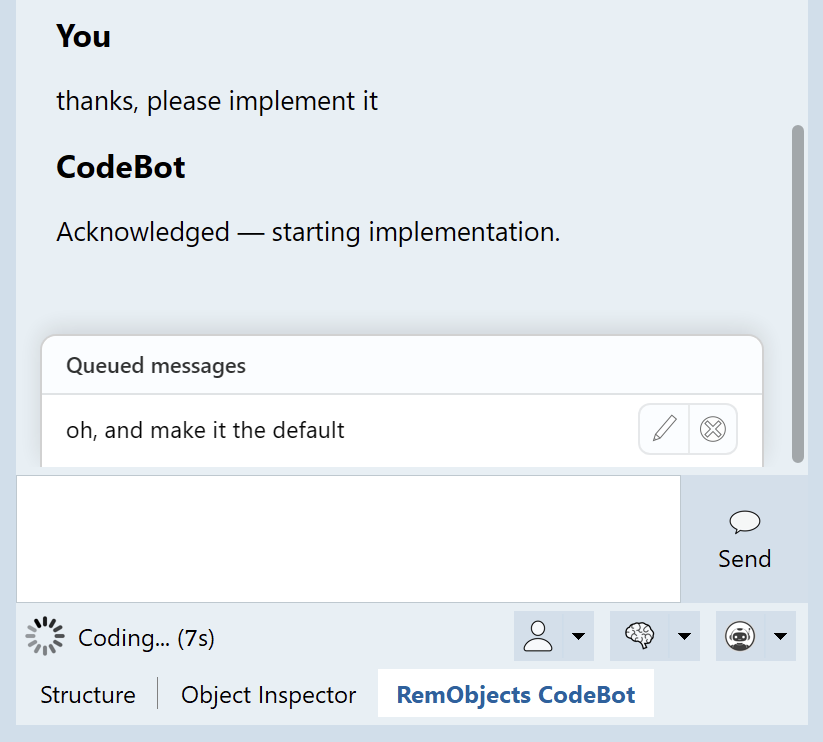
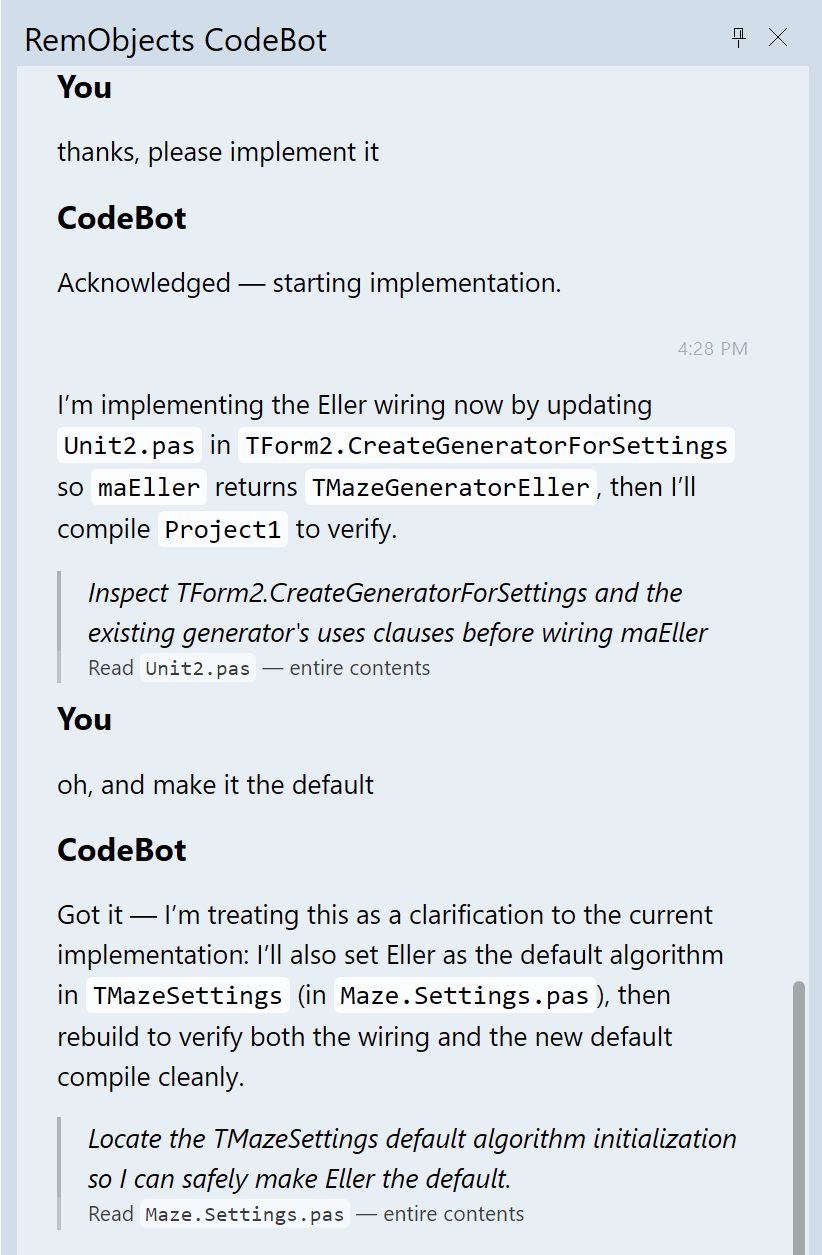
Queued messages are always read
CodeBot will never complete work while there are queued messages: it will always read what you say before it is done.
Editing or deleting messages
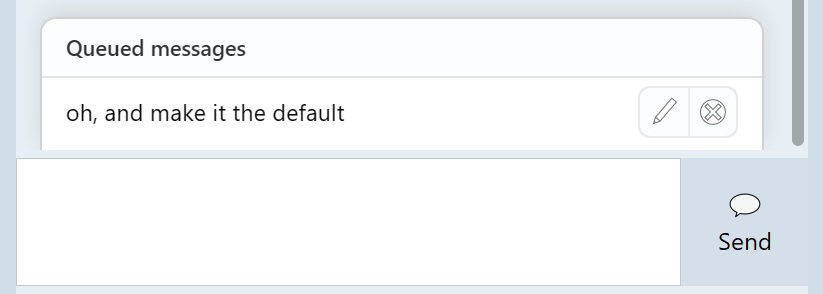
When a message is queued there is a brief opportunity to edit or delete it.
To edit, click the Pencil icon; this removes it from the queue (so CodeBot will not try to read it) and places the text back in the chat edit field.
To delete, click the cross icon.