Working with Media Files
Campfire can both generate and understand/process various types of media:
- Still Images
- Videos
- Voice (Speech)
- Music
Depending on the providers used, it can generate al four of these media forms; it can also analyze images submitted via attachments, and convert speech to text transcripts
All media operations are available in general chat (e.g., by just asking Codebot to create or analyze media), or via dedicated Media slash commands. For image creation specifically, a dedicated Image Workbench provides a powerful and flexible UI for image work.
Chat vs. Slash Commands
When you ask CodeBot via regular chat to generate media, the normal reasoning chat model will be involved, draft the necessary and best-suited prompts for you and rthen pass off image generation.
When you use media slash commands, your description (and options) will be passed on directly to the media model, without alteration. The general chat model is not involved.
For example:
Please create an image of a pretty blue flower in a vase
Will cause CodeBot to read this message, decide on its own that you are asking for an image, and then draft an appropriate prompt that describes the image you want (often in more detail than what you provided, to give you the best result.
By contrast,
/image photorealistic image of a pretty blue flower in a vase
Will deterministically take your description, "_photorealistic image of a pretty blue flower in a vase_" and pass it straight to the image model, as is.
This gives you more control if you are experienced wth drafting image prompts, but also requires more knowledge out of the box to get good results.
Because slash commands (and Image Workbench bypasses reasoning and chat, it also allows you to send media requests straight to, e.g., local models, without the main AI provider affecting, restricting, or being exposed to the prompt.
Selecting Media Models
By default, Campfire uses Model Strategies to decide what AI models to use for what tasks. This applies to different reasoning tasks inside the chat, as well as for media. Where available, a model strategy will map media capabilities to the appropriate models.
For example, if you are using the "OpenAI: Latest Models", some simple chat requests might go to gpt-5.6-terra and more complicated one might go to gpt-6-astra. And image generation will go to gpt-image-2*. If a provider does not support a certain capability, such media cannot be generated. For example, OpenAI does not currently support video anymore.
In Campfire Settings (and per-Worskpace Settings), you can optionally pick different models, including from different providers, for various media types:
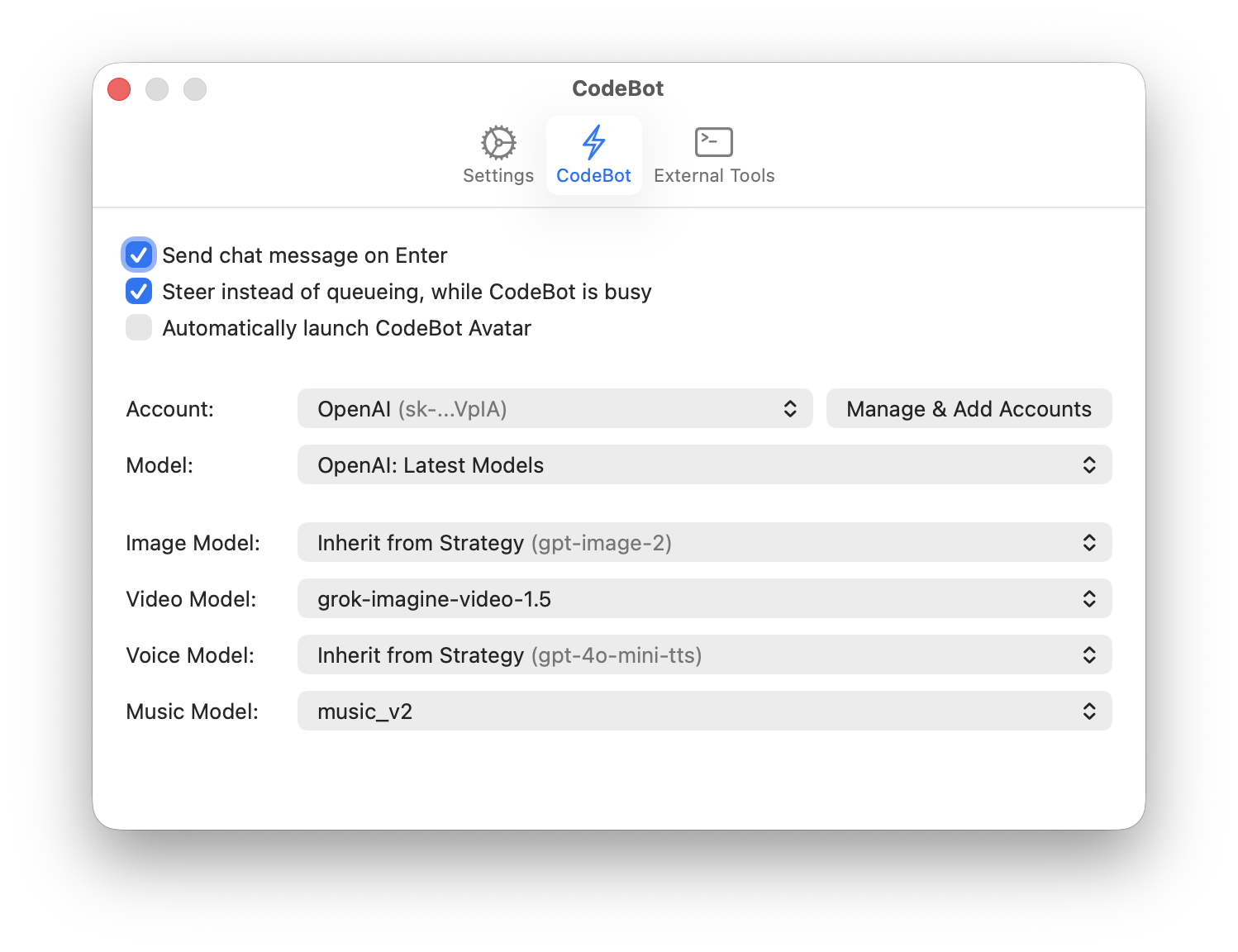
In the screenshot above, Video is set to be handled by Grok, and Music generation by ElevenLabs' music_v2.
Of course, this setup assumes that Grok and ElevenLabs accounts are set connected.
Campfire will automatically default to these models no matter how you initiate media generation. In Media slash commands and Image Workbench, you can further pick a different model for each task, e.g., by specifying model=kling-v3.
(* Defaults are subject to change over time, of course, as models evolve).
Read More
- Image Workbench
-
Media slash commands
/imagegenerate images from a description and/or reference images./videogenerate video from a description and/or reference images./voicegenerate spoken text/musicgenerate music, including instrumentation and vocals/transcribegenerate a text transcript from a voice recording
- Built-in Media Tools
- ComfyUI workflows and variants
Supported providers
| Provider | Image | Video | Voice | Music | Transcription |
|---|---|---|---|---|---|
| Descript | ✓ | ||||
| ElevenLabs | ✓ | ✓ | ✓ | ✓ | ✓ |
| Gemini | ✓ | ✓ | ✓ | ✓ | |
| Grok | ✓ | ✓ | ✓ | ✓ | |
| Kling | ✓ | ✓ | |||
| OpenAI | ✓ | ✓ | ✓ |