Campfire Settings
Use the Campfire Settings window to configure global preferences that should follow you across workspaces, such as update choices, account setup, default CodeBot configuration, chat behavior, and external tool paths.
Open the Campfire Settings window from the Campfire|Settings menu or via ⌘,. The window is separated into three tabs:
- General Settings, which currently covers update behavior.
- CodeBot for chat, accounts, models, and local model server settings.
- External Tools for Git and external diff tool configuration.
General Settings
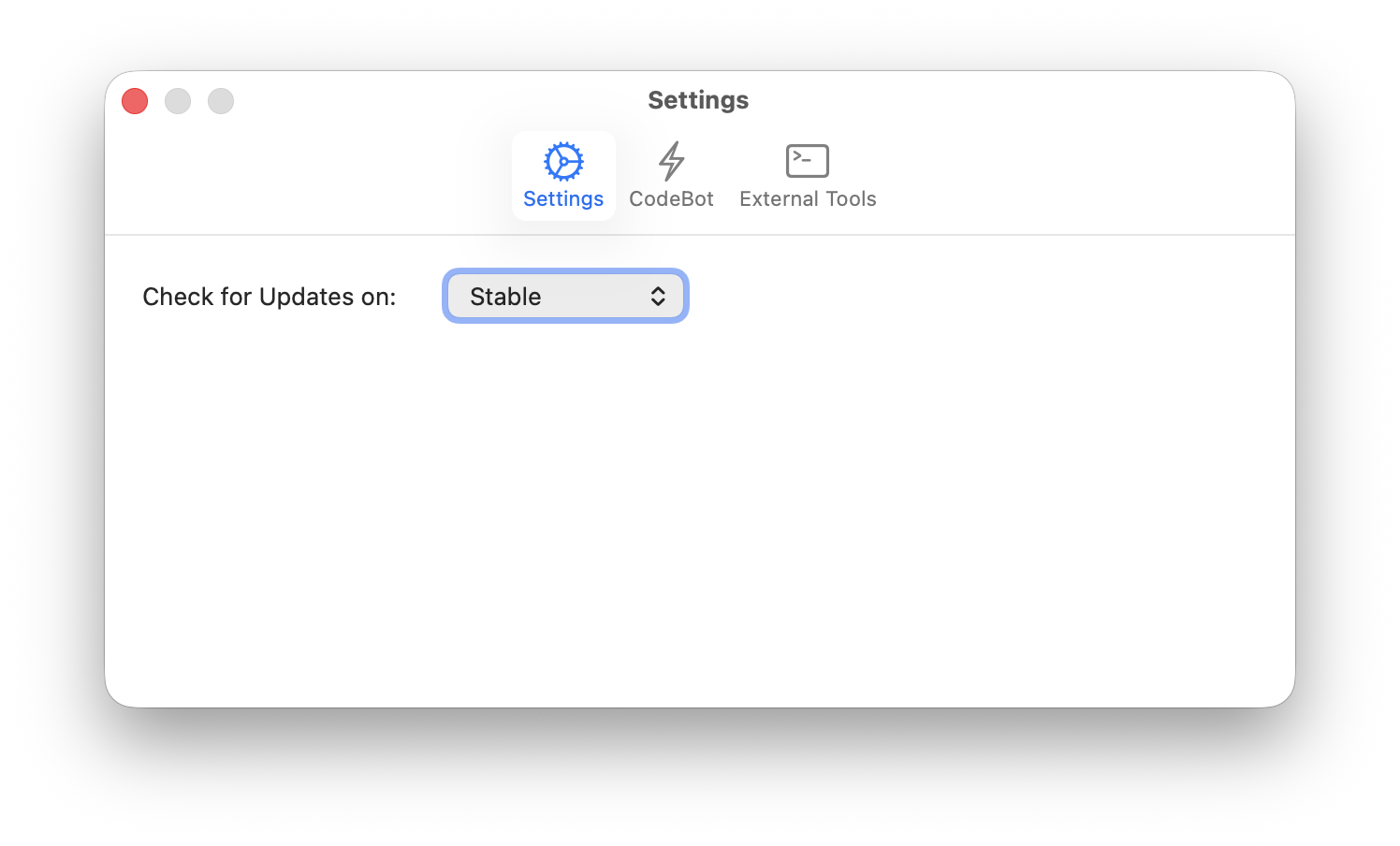
The General Settings tab controls how Campfire receives updates.
Check for Updates on
This chooses the update channel Campfire uses when checking for new builds.
The available channels are:
- Stable: Regular release builds.
- Preview: Rougher pre-release builds for trying upcoming changes.
- Experimental: The most adventurous channel, intended for users who are comfortable with faster-moving builds and potential breakage.
Use Stable unless you specifically want access to newer builds sooner.
CodeBot
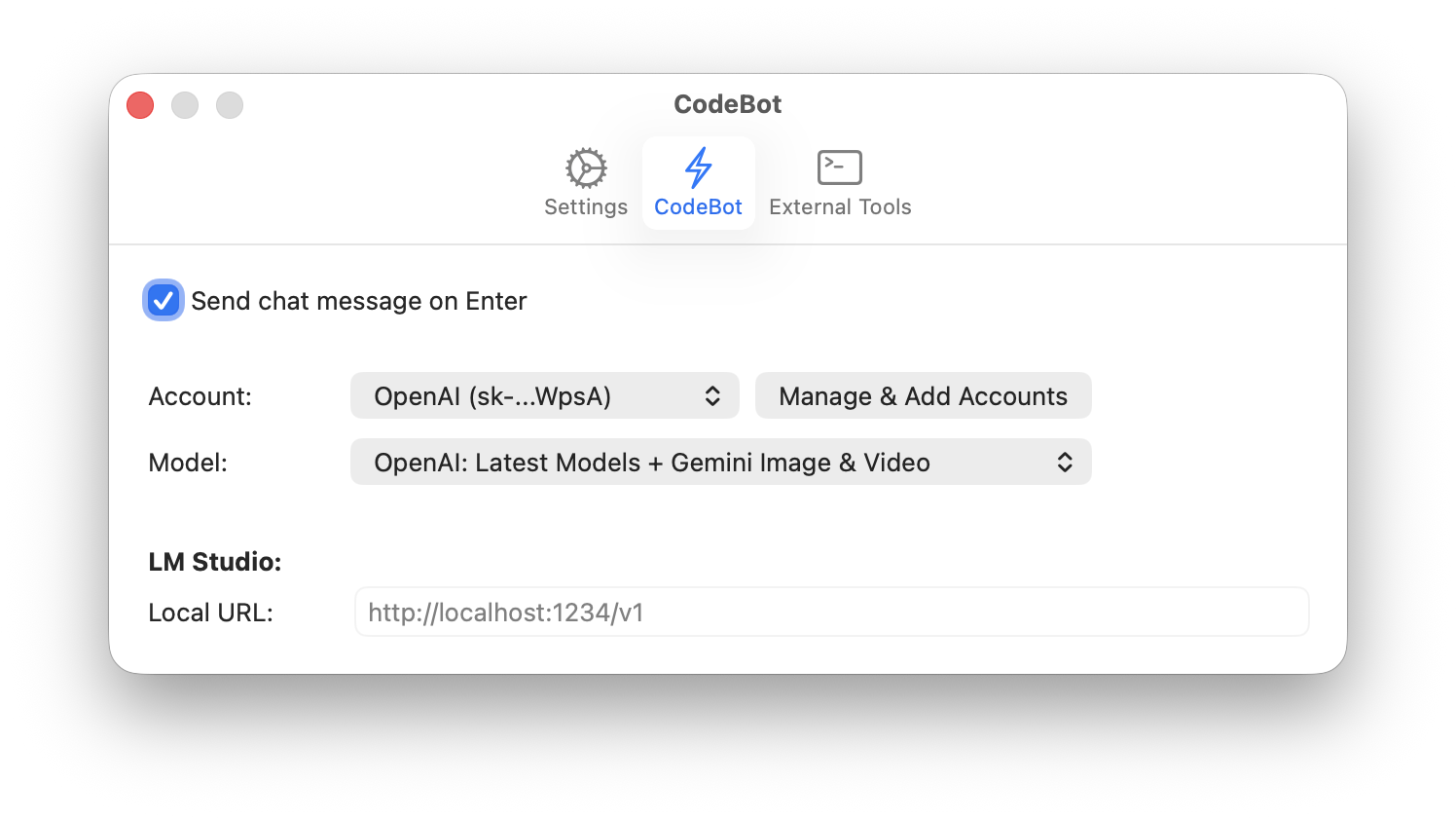
The CodeBot tab controls app-wide CodeBot behavior. These settings apply across workspaces unless a workspace has its own setting for a more specific behavior.
Send Chat Message on Enter
This controls how the chat input handles the Enter (Return) key.
When enabled, pressing Enter sends the current chat message. When disabled, Enter can be used for multi-line input, and you use the chat UI's send action to submit the message.
Conversely, ⌥Enter inserts a line break when this option is enabled, and sends the message when it is not.
Account
The Account popup chooses the default AI account CodeBot should use. Accounts are managed through the shared Account Manager; click Manage & Add Accounts to add, remove, or update accounts.
Depending on your setup, this can include hosted AI providers, local model providers in LM Studio, or system-provided models such as Apple Intelligence.
Model
The Model popup chooses the model or model strategy for the selected account.
For some providers, Campfire can show higher-level Model Strategies (recommended) as well as raw provider model IDs. If Campfire cannot load the model list, it shows the provider error in the preferences window so you can fix account credentials, network access, or local server configuration.
Some Model Strategies support using different providers for different tasks, for example OpenAI/GPT for general chat, but Gemini for image or video generation. If such a strategy is active, it will work with the selected provider by default, but will also require accounts for the other providers to be connected in order to delegate tasks to them.
LM Studio Local URL
The LM Studio local URL tells Campfire where to find a local LM Studio server.
Use this when the selected CodeBot account is LM Studio, or when you want Campfire to discover local models through LM Studio. Leave it unchanged unless your LM Studio server is running at a different URL than the default.
External Tools
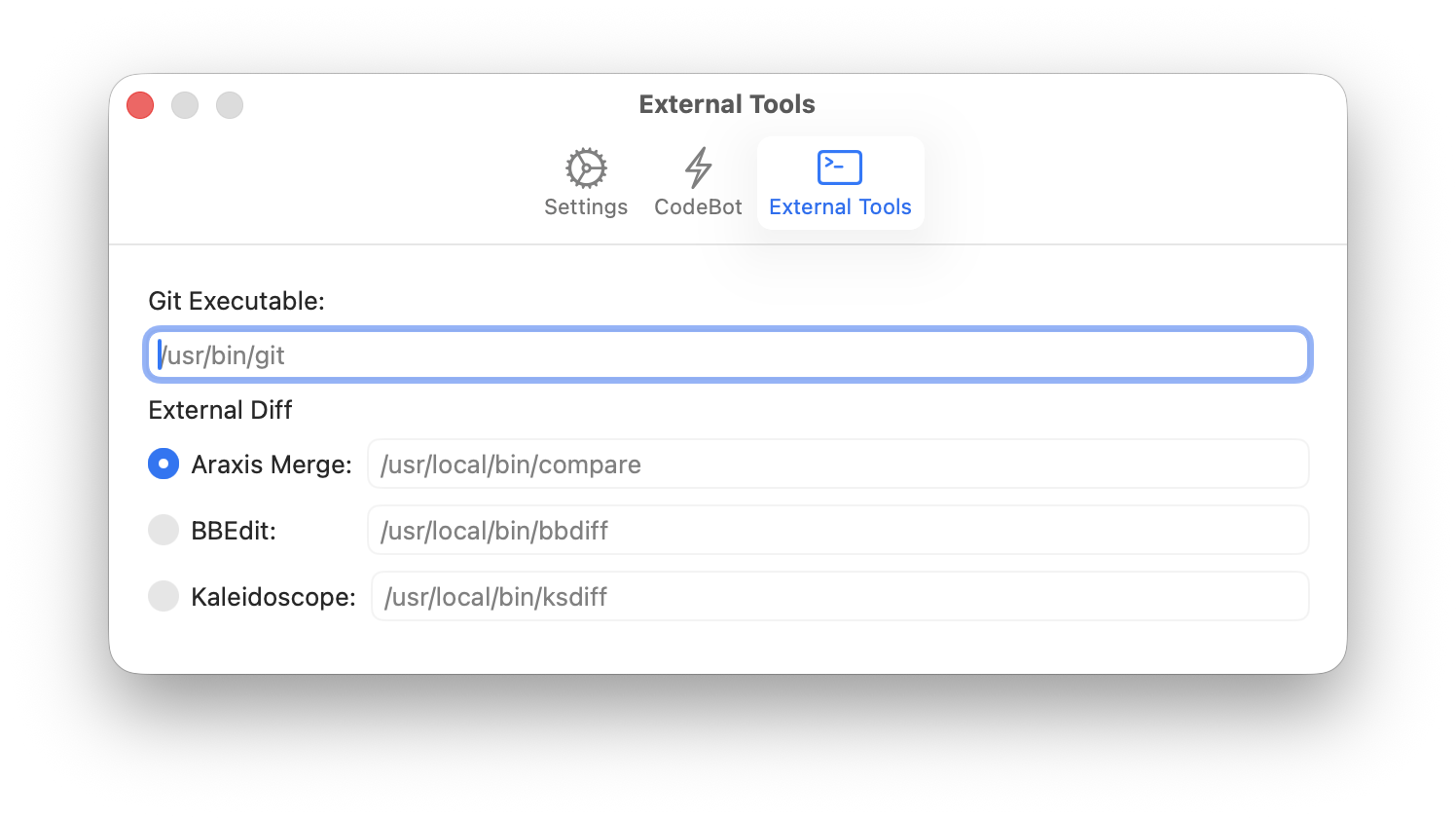
The External Tools tab configures app-wide source-control tools.
Git Executable
The Git Executable field lets you choose the Git binary Campfire should use. If you leave it empty, Campfire uses the default Git executable it can find on your system.
Set this only if Campfire cannot find Git automatically, or if you want it to use a specific Git installation.
External Diff Tool
Campfire can use an external diff tool for comparing files or reviewing changes.
The available tool choices are:
- Araxis Merge
- BBEdit
- Kaleidoscope
For each tool, provide the path to the corresponding command-line executable. Campfire validates the path and uses the selected tool for external diff operations.
See Also
- Workspace Settings