Workspace Settings
The Workspace Settings sheet, available from the Workspace|Settings menu or via ⌘I, lets you control settings that apply only to this workspace. Each workspace maintains its own values.
Campfire stores workspace settings in the workspace's .campfire folder. This keeps folder-specific behavior close to the work it affects.
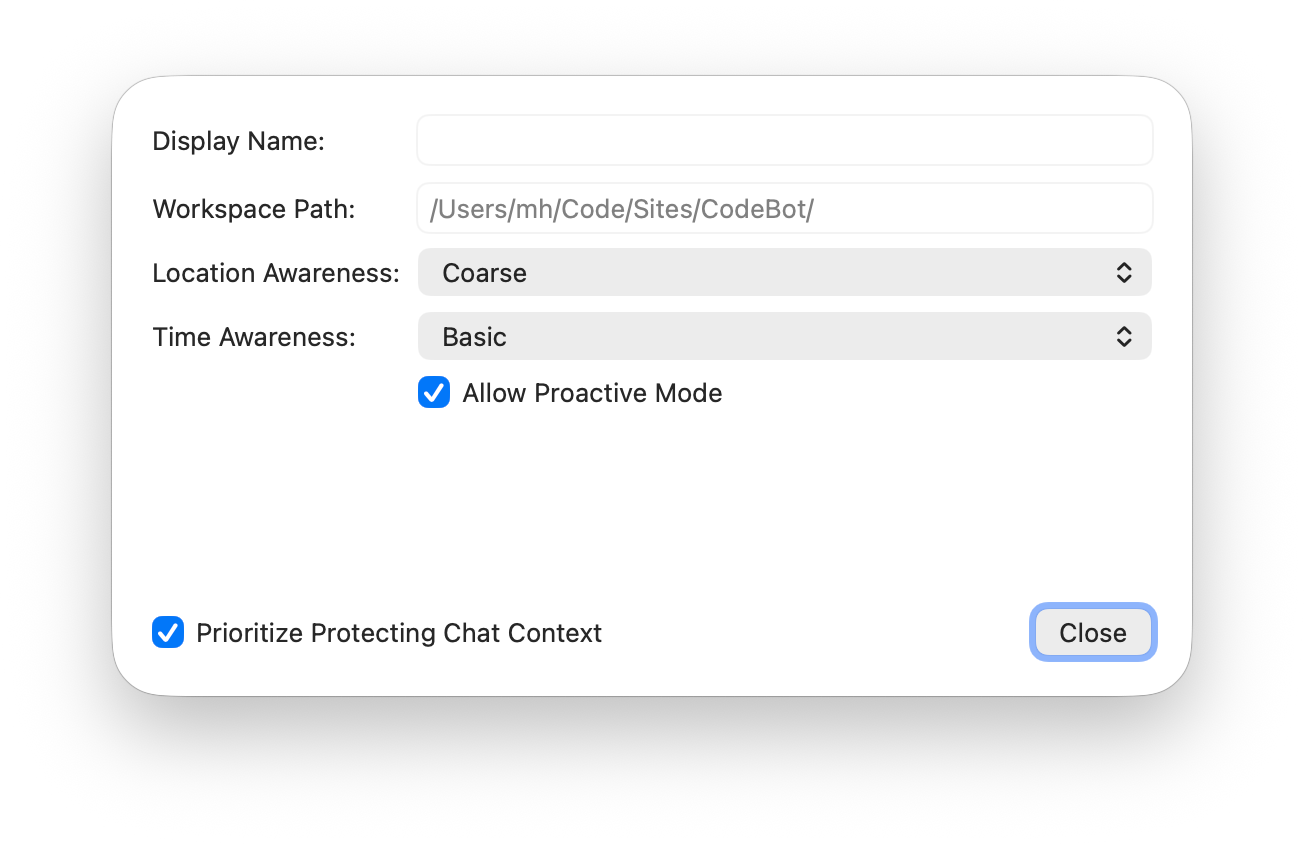
Display Name
This setting allows you to override the name that Campfire shows for this workspace, in the window title or tab bar, and in the Recents menu. This is helpful if you want to give the workspace a more descriptive title than the folder name provides.
Leave the display name empty to use the folder name.
Location Awareness
Location Awareness controls whether this Campfire workspace may have access to your location. It is off by default, and is useful if you want CodeBot to be aware of your location as you chat, for example because you want to ask location-relevant questions in a workspace for planning a trip.
The available options are:
- None: CodeBot and Campfire do not have access to your location information. This is the default.
- Coarse: CodeBot receives vague location context, including anonymized or rounded GPS coordinates, and a general country, region, or city with every request you send. This provides general awareness of where in the world you are at a given time, without giving away your exact location.
- Exact: CodeBot receives your precise GPS coordinates, as measured by your Mac. This is useful when you want to ask CodeBot about specific information near your exact location, such as nearby places, sights, or businesses.
Note: Most workspaces do not need location awareness. Enable it only when location awareness is relevant for your use case, such as local testing, travel-related work, or content that depends on where you are.
Time Awareness
Time Awareness controls whether Campfire may include the current time in CodeBot's context for this workspace.
The available options are:
-
None: CodeBot does not receive time information as part of general chat. It is not aware of time passing between interactions. CodeBot may still call the
getCurrentTimetool, available as part of the Scheduling architecture, when prompted to do so. -
Basic: CodeBot receives the current time, both UTC and local, with each request you send. This gives the model a basic awareness of the time of day; for example, it will know whether it is morning, midday, or evening for you.
-
Continuity: In addition to the current time, CodeBot receives guidance about time passing between interactions, and reflects on the passage of time when you send requests after a longer gap. This is useful when you want the workspace to have a more "real person" interaction model, where CodeBot can distinguish between an ongoing conversation and longer gaps between communications.
Use Basic when time of day is useful context. Use Continuity when the passage of time between interactions matters for the kind of work you do in this workspace.
Allow Proactive Mode
Allow Proactive Mode is an extension to regular Scheduling. With this enabled, CodeBot can proactively decide to reach out to you as needed, without that action having to be scheduled ahead of time or to be part of an active conversation.
Don't worry. This does not mean CodeBot will "text you when it gets bored" unless that's what you want it to do. How CodeBot uses this feature will largely depend on how you prompt it to use it.
For example, you might ask it to occasionally remind you to check whether a website project needs updating to catch up with current events. If you are driving a marketing or social media account from your workspace, you might want CodeBot to occasionally come up with new ideas for a viral post. You can also ask it to message you when it gets bored, if you want to, or when it thinks you have neglected your workspace for too long.
This feature is useful for longer-running projects, follow-ups, or tasks where Campfire should keep track of what needs to happen next, at times that are not known ahead of time. Turn it off for workspaces where you only want direct, prompt-by-prompt interaction.
Note: Like all scheduled actions, proactive reach-outs run visibly in the workspace's interactive chat window, and any actions requiring approval will still trigger the necessary Approval mechanism, unless you pre-approved them.
All that changes with proactive mode is that instead of you reaching out to CodeBot by typing a message into the chat, CodeBot messages you first.
Prioritize Protecting Chat Context
In standard mode, Campfire assumes that your workspace content, along with any skills, memories, or action items you may have collected, is the primary focus of your work. The chat is a means to an end, such as creating content or working on your app.
The chat itself is considered "discardable", and you may frequently invoke the "Clear Chat Context" (⇧⌘N) or even "Clear Chat Context & History" (⇧⌘K) menu items when you're done with one task and want to start a fresh chat to work on the next task.
If, for some reason, Campfire cannot recover chat context after a restart, for example because the cache in your .campfire folder was corrupted or lost, your workspace will also come up fresh with a new chat.
Clearing the chat context means that CodeBot forgets everything you talked about, unless you formalized it into Skills, or asked it to memorize it. Often, this is exactly the behavior you want in a workspace, but not always.
Prioritize Protecting Chat Context tells Campfire to reverse this behavior and avoid actions that would discard or overwrite the current CodeBot conversation for this workspace.
When this option is enabled, Campfire treats the current chat context as important workspace state, with the folder content becoming secondary. It disables the options for clearing chat history, and favors a partially or poorly restored cached chat state over a fresh start.
Use this for workspaces where you want a long, ongoing conversation with CodeBot, if you rely on CodeBot having a consistent and unified memory of everything you talked about across the lifetime of the workspace, or if you want ongoing "in character" chat that stays consistent over days, weeks, or even longer.
See Also
- Campfire Settings