The Chat
CodeBot lives inside the Elements IDEs as a chat-based assistant that can use the open solution as context.
This section starts with the Fire and Water-specific ways to open CodeBot, then continues with the shared chat behavior that also applies to Campfire.
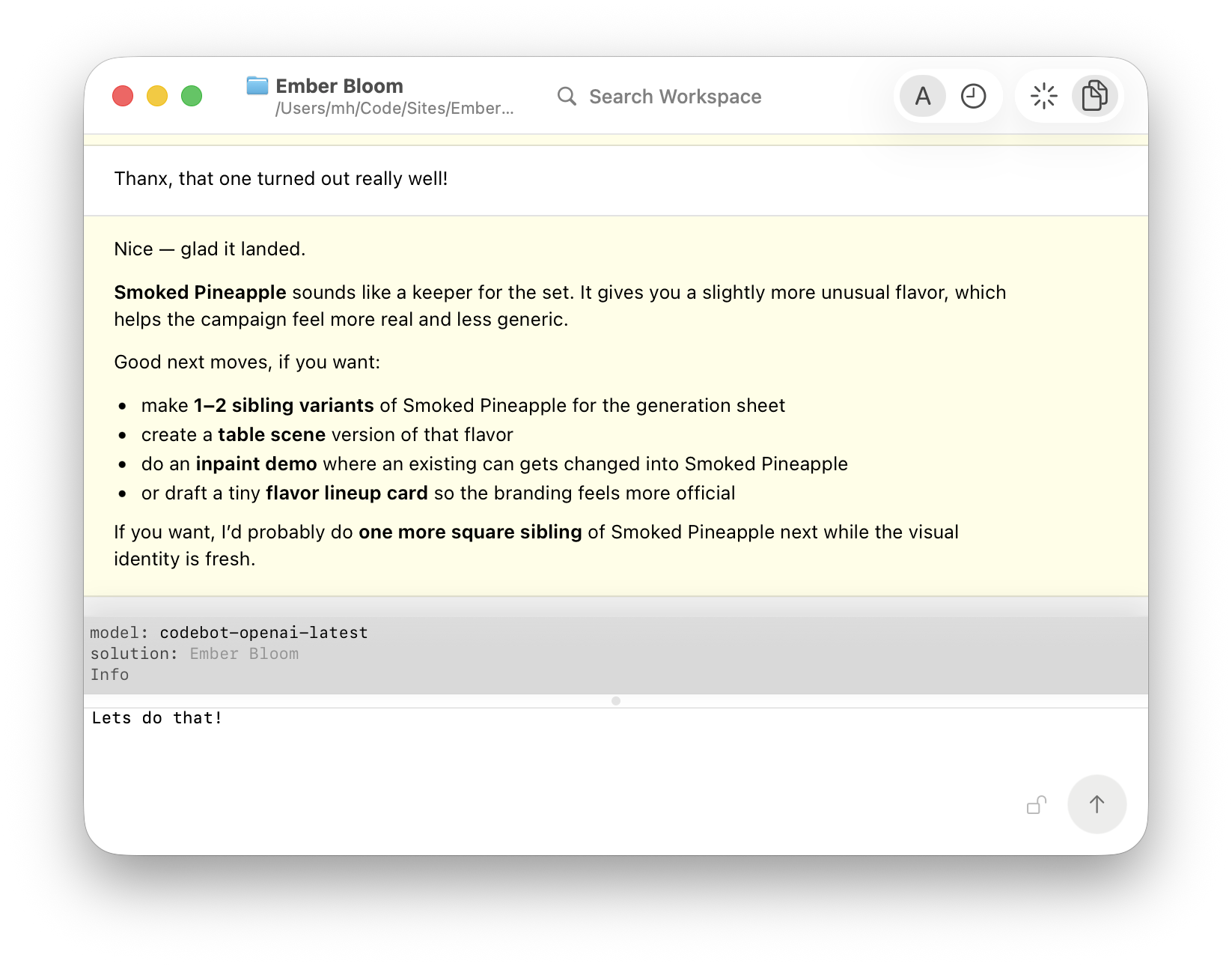
The Chat Transcript
The top half of the window is the chat transcript. Here you see all your previous interactions with CodeBot, including your own messages, CodeBot responses, tool activity, follow-up questions, and more. Tool output is part of the run history, so you can see what CodeBot inspected or changed before it answered.
CodeBot may ask for clarification when a request is ambiguous, risky, or needs a choice that cannot be inferred from the workspace. Answer in the chat to continue the run.
The Message Editor
The message editor fills the bottom of the window and consists mainly of a text field where you type your questions to CodeBot.
By default, pressing Enter (Return) will send your message to CodeBot; you can use ⌘Enter to add line breaks to write a longer, multi-paragraph prompt. If you prefer, you can reverse this behavior in Settings, so Enter/Return adds line breaks like in a normal text editor, and ⌘Enter sends messages.
You will also see a small up-arrow "Send" button in the bottom-right corner that you can click to send the current message.
Locking the Editor
Sometimes, you want to focus on writing a long and detailed prompt without risking sending it half-finished by pressing Enter with or without the right ⌘ combination. To do so, you can lock the message editor from sending by clicking the small Lock icon next to the send button, or by pressing ⌘L.
When locked, neither Enter nor ⌘Enter will send your message, and you can safely type away. You can still send your message by clicking the send button, or by unlocking the editor first.
Attachments and File Dragging
You can drag files and images into the text field to pass them along to CodeBot, and you can also paste images, such as screenshots, right from the macOS pasteboard via ⌘V.
CodeBot has two ways of passing file information that differ crucially: attachments and file paths.
By default, if you drag a file into the text field or paste an image, it will be added as an attachment, and its data will be sent to CodeBot along with your next request.
Attachments are passed to the AI model as binary data, so CodeBot will be able to see that data. For example, the model will be able to directly read the data in a text or PDF file, or inspect the contents of an image. The model will not know the path, filename, or where the data came from.
If you hold ⌥ (Option) while dragging in a file, then the path and filename of the file will be added to the chat and passed along to CodeBot with your next message. CodeBot will know what file you are referring to in the context of your message, and it can use that path to initiate additional actions, for example, you may ask CodeBot to patch it, copy it, or use it as a reference image. The model will not be able to see the contents of that file directly, and the file will not be sent to the model.
Note: When you are editing an /image or /video slash command message, dragging in files will default to adding the file path, rather than an attachment.
When to Use Attachments vs. File Paths
Use attachments when you want CodeBot to have a direct look at the contents of your file, for example to ask "why does the button look off in this screenshot" or "can you summarize the ideas from this PDF into action items for the website we can tackle next".
Attachments are sent straight to the model, whether it wants them or not, and will incur a modest token cost.
Use file paths when you want CodeBot to perform actions with or on your local files, which may still include reading them. Sending a file path gives CodeBot nothing but that: the location of your file, not its contents yet. CodeBot can then decide what actions to take on the file using any of the many tools the host app provides, which may include asking to read the file or see the image, but often may not.
For Image and Video Generation in particular, you will want to pass file paths for images to use as references, for example "make the shirt in this image blue", so CodeBot knows which exact files on disk to send as references. Use an attachment to have the image guide CodeBot's idea for image generation, for example "look at this image, and let's create one where our product is shown in a similar setting". CodeBot will see your image and use what it sees to guide the prompt it writes, but the image generator will not see the original image.
Sometimes, in rare cases, you'll want to pass an image as both an attachment and a file path, and that is perfectly fine to do.

Steering and Queuing
While CodeBot is busy running one of your requests, you will see the "Send" button expand to a pill with three options.
The rightmost button, X, will cancel the current request. Use this if you sent the wrong request, or you don't like the output you are seeing so far and want to abort and start over rather than wait.
Next, there are two more options that become available once you type a new request: Steer and Queue.
Queue, the button on the left, will add your new message to a queue and send it automatically to CodeBot once it is done with the current activity. Use this if you want CodeBot to finish, but have a new idea to ask it for when it is done.
Steer, the middle button, will instead use your message to guide CodeBot in what it is currently doing, to adjust its course or give it additional information.

There are two steering modes. The default is soft steering: the host app lets CodeBot keep going and injects your new information as soon as it can. Force steering, available while holding down ⌥ when clicking the steer button, interrupts CodeBot to add your guidance.
Force steering can be a bit harsh, and might discard or lose work from, for example, the current tool call. Use it with caution, only if you think CodeBot really needs to change course right now.
Think of it as interrupting CodeBot mid-sentence versus waiting for a gap in its response to interject your concern.
By default, sending new messages via the keyboard (Enter/⌘Enter) will steer. You can change the default to Queue instead in Settings.
The Status Bar
At the bottom of the chat transcript, you find the status bar, which gives you access to a few pieces of information. It shows which AI model or model strategy you are using, which skills, if any, are active, and it gives you access to the Info popup through the "Info" link in the last row.
The status bar will also show additional information at times, such as the number of queued-up requests or the number of attachments, and give you popups for managing them.
Clicking "Info" shows you the main Info popup, which gives you details on the active request, if any, as well as the last and previous runs, which models, background agents, or skills were used, and more.

Tool Activity
As part of answering your request, CodeBot may decide to use one or more tools to help provide the desired outcome for you. Tools might access or modify files in your project or workspace, generate images, run command-line tools, and much more.
By default, tools that access data outside of your project or workspace, or tools that make modifications, require your approval. Essentially, unless you approve otherwise, CodeBot can see what's in the current project or workspace, but not much else.
CodeBot will always show you what it's doing and, where applicable, provide inline progress and updates. For example, image generation with OpenAI/GPT will generate several preview iterations before the final image is done, and you will see your images evolve in the chat, even before the final rendering is ready.

When CodeBot uses tools, the Chat UI shows progress and results inline with the conversation. Read-only inspection usually happens without interruption. File edits, shell commands, network access, and other guarded actions may, as mentioned before, require approval before they run.
Approvals are scoped to the current project or workspace and action. The host app uses them to keep CodeBot's access explicit, especially for commands that can modify files, contact external services, or perform destructive operations.

Background Work and Planning
Some runs take longer than a normal answer. CodeBot can keep reporting progress while it searches, edits, builds, tests, or waits for a tool. You can continue from the same chat once the run completes or when CodeBot asks for input.
For work that should pause before edits, say so in the prompt:
- "Plan this first."
- "Review the diff and tell me the risks before changing files."
- "Do not edit yet; explain the implementation seam."
You can also explicitly start a prompt with /workplan to ensure CodeBot goes into planning mode and presents you with a detailed step-by-step outline of what it intends to do. If you choose to execute, the plan will show in the status bar, and you can always see which steps are done, active, or pending.
Generated Files
The Chat can include local files, generated images, and other project or workspace artifacts when a run produces or uses them. CodeBot will, by default, keep generated and edited files inside the project or workspace unless a tool or approval explicitly allows another destination.
Even within the project or workspace, you will get asked for approval on the first modification. You can decide how widely you want to approve changes, for example always allow, any changes in the project or workspace, only to a specific file, or always review, based on your needs and preferences.
You can review and revoke any approvals at any time in the CodeBot Data window.